Fix BGMI Lag on Low-End Phones: The 2026 Guide
If your frames are dropping like your rank in a bad match, you need a real BGMI lag fix, not just hope.
 By Swotboysandy3 min read
Ask AI about this guide
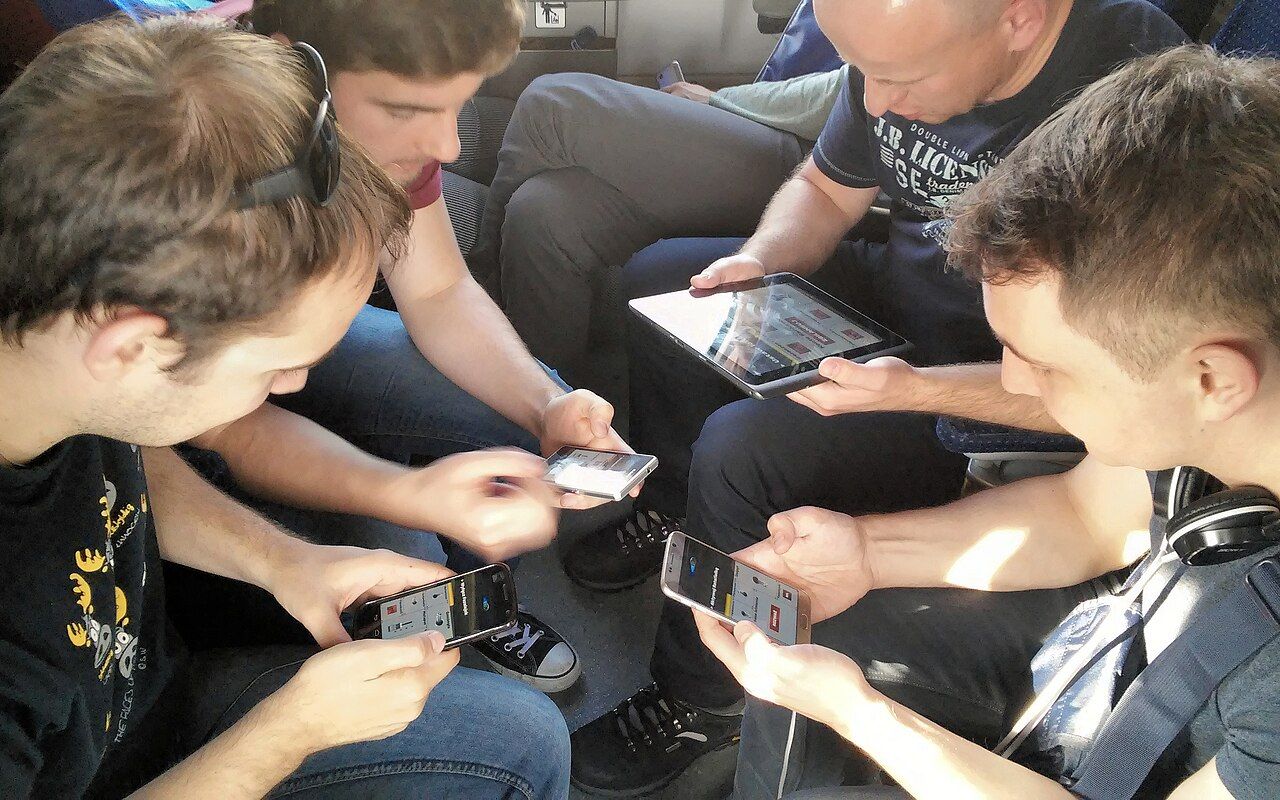
If your frames are dropping like your rank in a bad match, you need a real BGMI lag fix, not just hope. Here is how to squeeze every last bit of performance out of your low-end device.
Why Your Phone Thinks It Is a Heater
Low-end phones struggle with BGMI because the game demands consistent CPU and GPU output while your battery management system tries to throttle performance to save power. When the phone overheats, it slows down the processor to cool off, causing that annoying rubber-band effect where your character stutters right when you need to peek a corner. It is not magic; it is physics and bad thermal management.
Optimize In-Game Settings for Smoothness
Stop trying to run the game on Ultra graphics if your phone is from 2022. You will look cool for two seconds and then watch your character swim through the air for the next twenty. Here is the setup for BGMI smooth gameplay on weaker hardware:
- Set Graphics to Smooth. This is non-negotiable for low-end devices. It reduces the load on your GPU significantly.
- Set Frame Rate to Extreme or High. Do not go for Ultra if you are not using a top-tier flagship. Extreme gives you a stable 60 FPS on most mid-range and many low-end phones, which is far better than a shaky 90 FPS.
- Turn off Anti-Aliasing. It makes edges look jagged, sure, but it saves precious processing power. You want to see the enemy, not admire the texture of the grass.
- Disable High Dynamic Range (HDR). It looks pretty in the menu but drains battery and causes frame drops during intense firefights.
Clean Up Your Android System
Your phone might be running ten background apps that are fighting for RAM while you are trying to land in Erangel. Before you launch BGMI, close everything else. Here is the routine:
- Force Stop unnecessary apps. Go to Settings > Apps and force stop social media, browsers, and any other heavy apps. They are eating your RAM and CPU cycles.
- Clear Cache. Go to your phone’s storage settings and clear the cache for your browser and other apps. This frees up space and can sometimes speed up loading times.
- Disable Battery Saver. This is a big one. Battery saver modes limit CPU performance to save power, which is the opposite of what you want in a competitive shooter. Make sure your phone is on standard or performance mode if available.
Common Mistakes That Kill Performance
Even with the right settings, you can still sabotage your experience. Avoid these pitfalls:
- Playing with the charger plugged in for long sessions. While it keeps the battery up, it generates extra heat. If your phone gets hot, unplug it and let it cool down for a few minutes. Overheating is the number one cause of lag spikes.
- Using third-party "FPS boosters" or "game boosters." Most of these are useless and some can actually interfere with your system’s resource management. Stick to the built-in game mode on your phone if it has one.
- Ignoring storage space. If your phone is almost full, it will slow down. Keep at least 10-15% of your storage free to ensure the system can write temporary files efficiently.
Final Tips for 2026
Consistency beats peak performance every time. If you can maintain a stable 60 FPS, you will outperform someone who gets 90 FPS but stutters every time they throw a grenade. Keep your phone cool, keep your settings low, and keep your aim sharp.
Making a BGMI montage? See how GamingCap finds your BGMI kills for you.
Keep reading
 Guide
GuidePlan BGMI Clips Around Event Dates Without Chasing Every Trend
Build a small content plan around the start, mid-point and final days of an in-game event: what to record, when to shortlist clips, and how to prepare…
 Guide
GuideBGMI Sensitivity Settings Without Gyroscope
How non-gyro players should approach camera, ADS and fire-button sensitivity: start from defaults, change one scope at a time, test in training, and why…
 Guide
GuideBGMI 90 FPS: Where the Setting Is and Whether to Record at It
Where the frame-rate option sits in BGMI's graphics menu, why it only appears on some devices, and the trade-off between playing at a high frame rate and…