How to Make a COD Mobile Montage From Your Recordings
Creating a high-quality cod mobile montage starts with capturing clean gameplay.
 By Swotboysandy2 min read
Ask AI about this guide
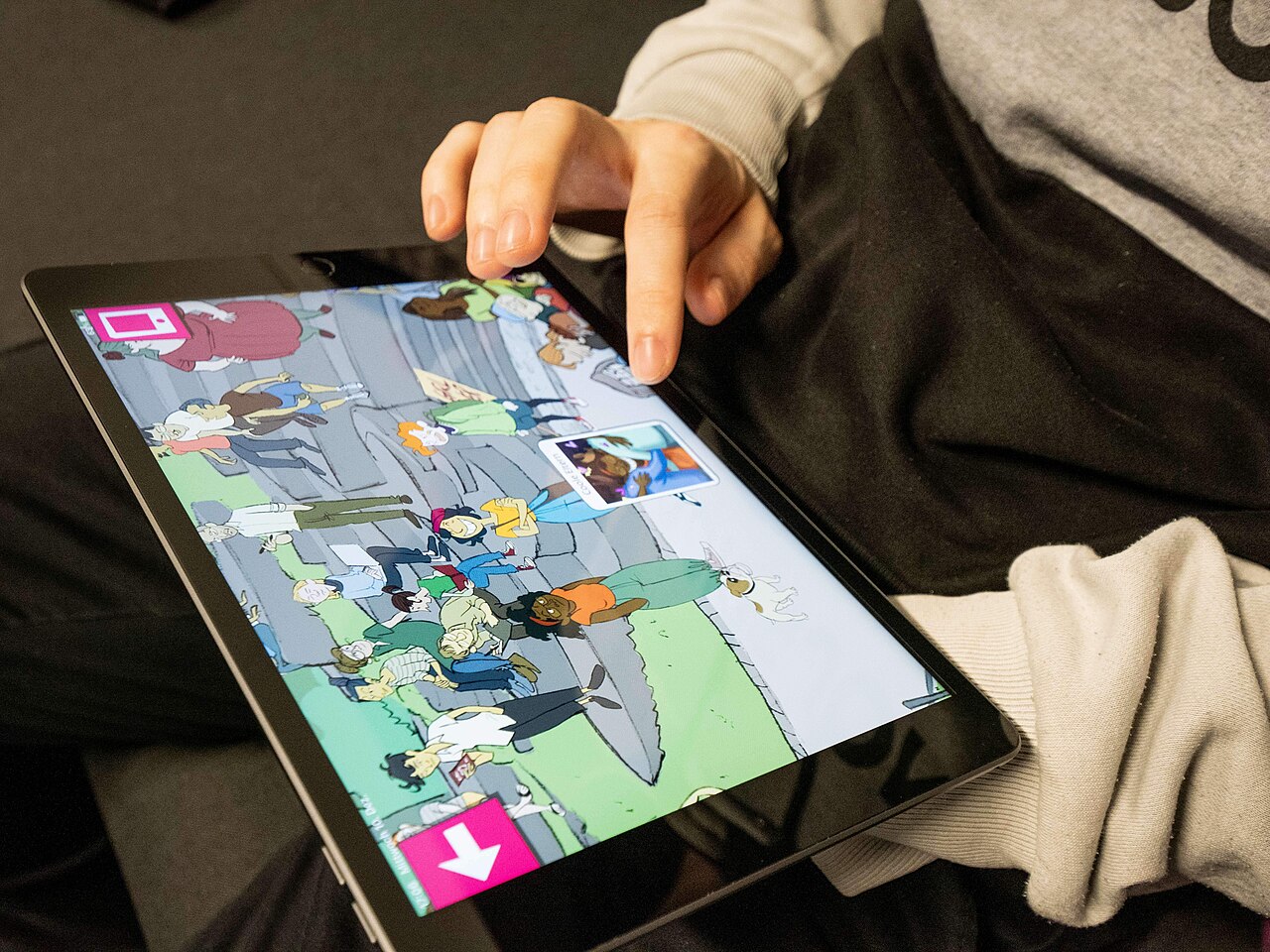
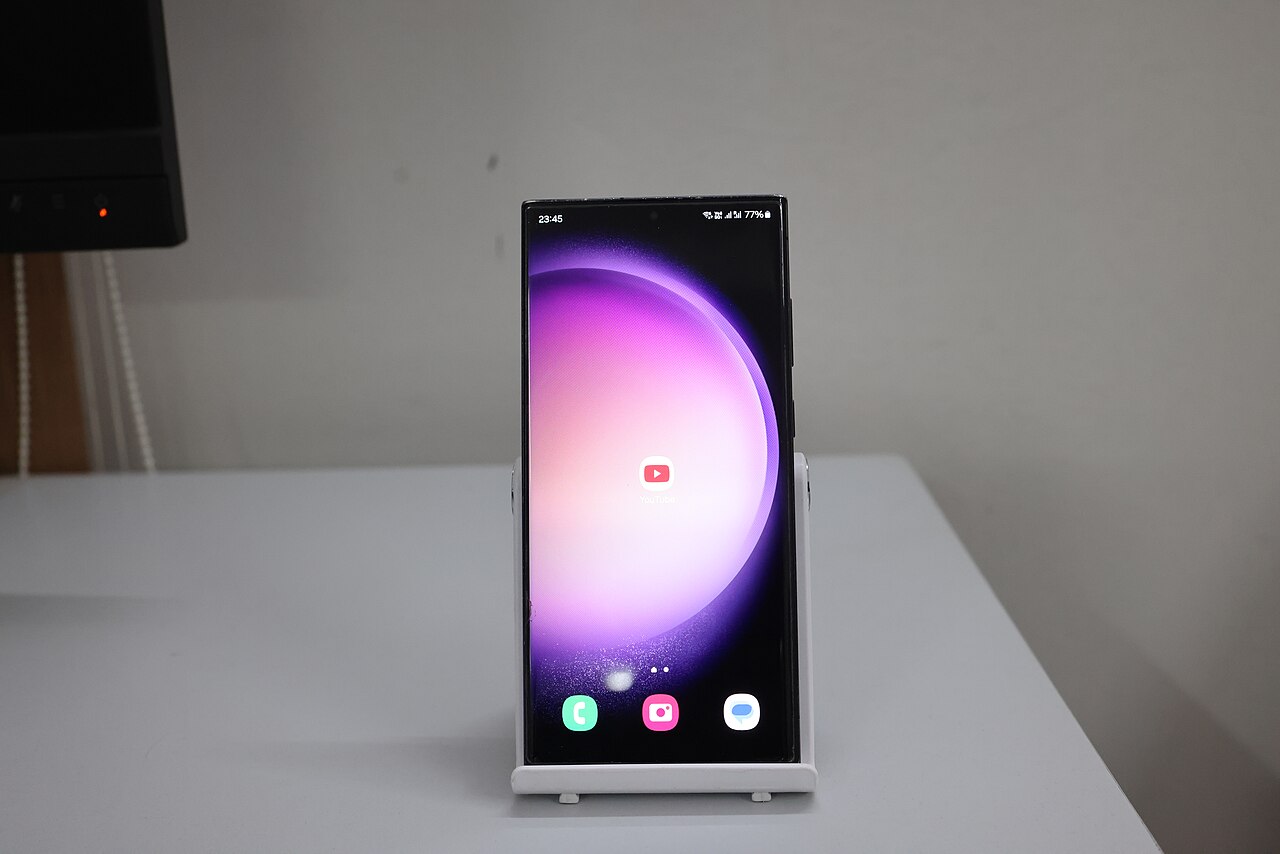
Photo: InclusiveGameLab, CC BY-SA 4.0, via Wikimedia Commons
Recording matches on your phone
Creating a high-quality cod mobile montage starts with capturing clean gameplay. Most players use built-in screen recorders on Android or iOS, which are sufficient for standard resolution footage. Ensure your phone’s storage is clear before starting a session, as high-bitrate video files consume space quickly. For the best results, close background applications to prevent frame drops during intense firefights. If you play on a lower-end device, consider lowering the in-game graphics settings slightly to maintain a stable frame rate, which makes the final video easier to watch.
Transferring files to your computer
Once you have finished your matches, you need to move the video files to a Windows PC for processing. The most reliable method is using a USB cable and a file manager, though Wi-Fi transfer apps work if you are patient. Create a dedicated folder on your desktop for each gaming session. This keeps your clips organised and prevents accidental overwrites. Note that transferring large files can take time, so plan your editing session around this wait period. Do not delete the original files from your phone until you have verified the transfer is complete and the files play correctly on your computer.
Identifying and ordering kills
Reviewing hours of footage to find your best moments is the most tedious part of the process. In multiplayer modes, you are looking for specific eliminations where your in-game name appears in the kill feed. Battle royale footage requires a different approach, as you may want to include survival streaks or close calls alongside direct kills. Manually scrubbing through video to find these moments is time-consuming and prone to human error. You must decide which clips are worth keeping, ensuring a logical flow from one kill to the next. This curation step determines the pacing of your final edit.
Exporting your final montage
After you have identified the clips you want to keep, the next step is compiling them into a single file. GamingCap is a desktop application for Windows and Apple-silicon Macs that reads match recordings you already have. It scans the kill feed to find knocks and eliminations featuring your exact in-game name, filtering out teammates' kills. Each detected moment becomes a ten-second clip, which you can review before export. The software then combines your selected clips into one MP4 file, retaining the original game audio. It does not add music, titles, or effects, nor does it crop the video to a vertical format. Detection is not perfect, so always review the generated clips to ensure no key moments were missed. The first 24 hours are free with no card required, after which the service is available for 199 rupees a month or 1,499 rupees a year in India. For players who also manage their social media presence, consider using tools like Instalaz to schedule your new content effectively.
Making a COD Mobile montage? See how GamingCap finds your COD Mobile kills for you.
Keep reading
 Guide
GuideHow to Make a Gaming Montage, From Recording to Export
The whole process for any game: capturing footage, picking kills, ordering clips, music, and exporting a file that looks right on YouTube.
 Recording
BGMI Recording Settings That Survive the Upload
Framerate, bitrate, resolution and codec choices that decide whether your montage looks sharp on YouTube or turns to mush during a firefight.
 Guide
GuideHow Long Should a Gaming Montage Be?
How long should a gaming montage be? For most competitive shooters, the ideal duration is between thirty and sixty seconds.