Gaming Montage Makers Compared: What Each One Automates
A gaming montage maker usually refers to software that captures or clips gameplay automatically.
 By
Editorial policy and corrections
Ask AI about this guide
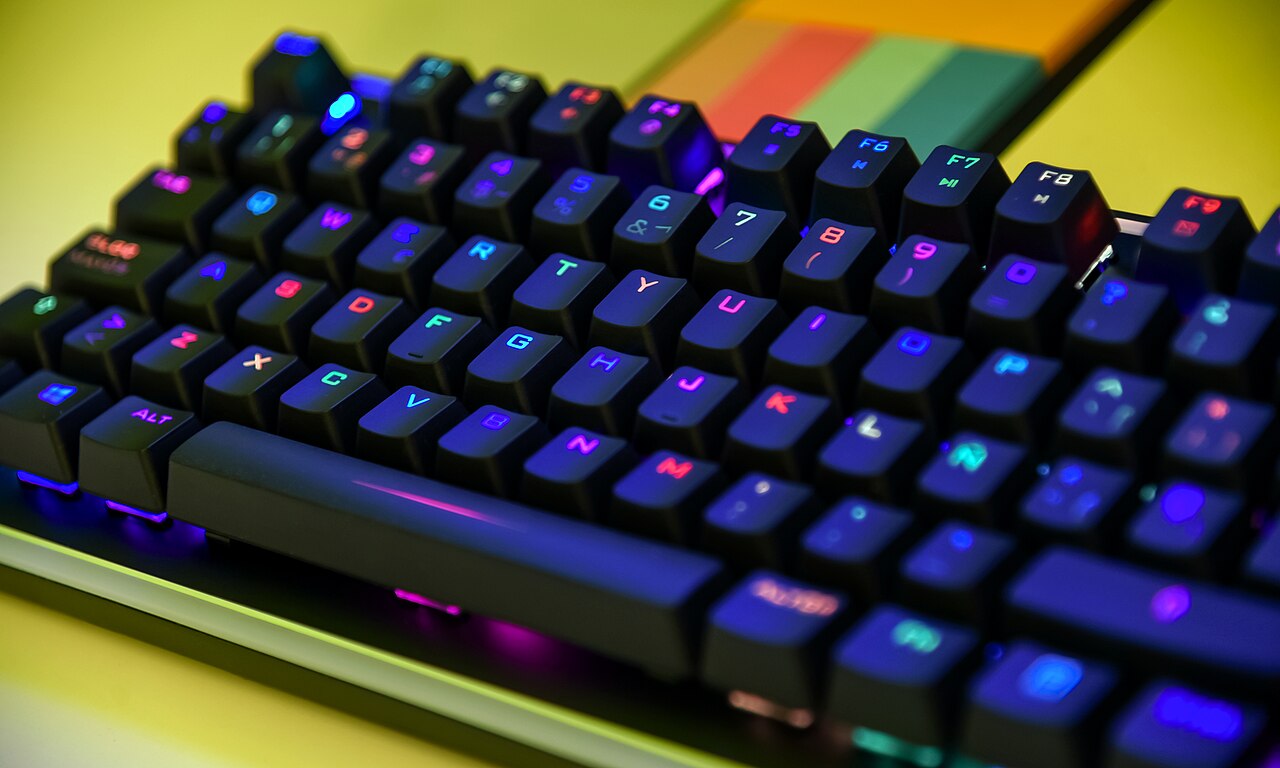
Record-while-you-play tools
A gaming montage maker usually refers to software that captures or clips gameplay automatically. For PC shooters like Valorant, CS2, Warzone, Apex, Fortnite, and PUBG, this category splits into overlays that record in real-time and post-session processors that read existing files. The main difference is when the work happens: during the match or after you have saved the video.
Overlay tools run in the background while you play. They monitor the kill feed and save short clips when you get a kill. This saves the tedious job of scrubbing through hours of footage later. However, running an overlay alongside a competitive shooter can consume system resources, potentially affecting frame rates on lower-end hardware. You must also trust the software to capture the right moments without missing them due to lag or detection errors.
Post-session processors
These applications operate on recordings you already have. They do not record gameplay and do not display an in-game overlay. Instead, you point the software at a saved video file, and it scans the kill feed within that file. This approach removes the need to keep recording software running during your session, which can help maintain stable performance in competitive games.
The primary advantage is isolation. Since the processing happens after the match, there is no risk of the tool interfering with your gameplay or causing input delay. The trade-off is that you must have saved the full match recording first. If you did not record the session, there is nothing to process. This method is particularly useful for players who use external capture cards or have already saved VODs from streaming platforms.
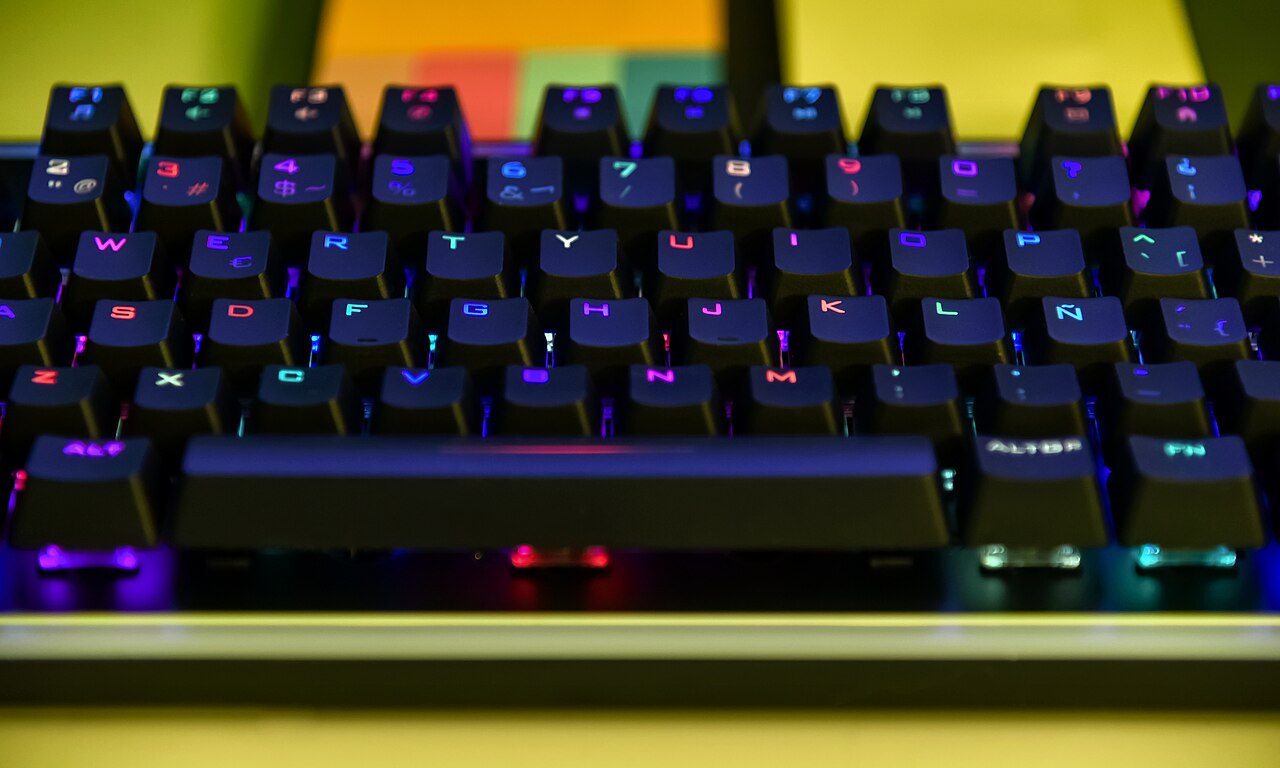
Editing and export
Once clips are identified, the final step is assembly. Most tools allow you to review the detected moments before exporting. You can delete clips that are not worth keeping, such as accidental kills or moments where the camera angle was poor. The export process then combines the selected clips into a single video file.
Some tools add music, transitions, or titles automatically. Others export the raw clips with the original game audio. If you prefer a clean edit, look for tools that do not force overlays or effects. You can always add music or titles later in a separate video editor if you want more control. The key is that the tool handles the tedious selection process, leaving you with a shorter list of clips to review rather than hours of footage to watch.
Common questions
Does the tool record my gameplay?
No, GamingCap does not record gameplay. It works on recordings you already have. You must save the match video first, then use the tool to find the highlights within that file.
How does it know which kills are mine?
It reads the kill feed in the video and looks for your exact in-game name. It only keeps the moment if your name is confirmed in the feed, so teammates' kills are left out.
Can I use it for mobile games like BGMI?
GamingCap is a Windows application designed for PC recordings. It reads the kill feed from video files. If you have a recording of a mobile game that shows the kill feed clearly, it may work, but it is primarily built for PC shooter titles where the name is visible in the feed.
For players who want to automate the clipping process without running background software during the match, post-session processing is a practical option. PracandyFlix offers more on video content workflows, though GamingCap focuses specifically on highlight extraction from existing recordings.
Keep reading
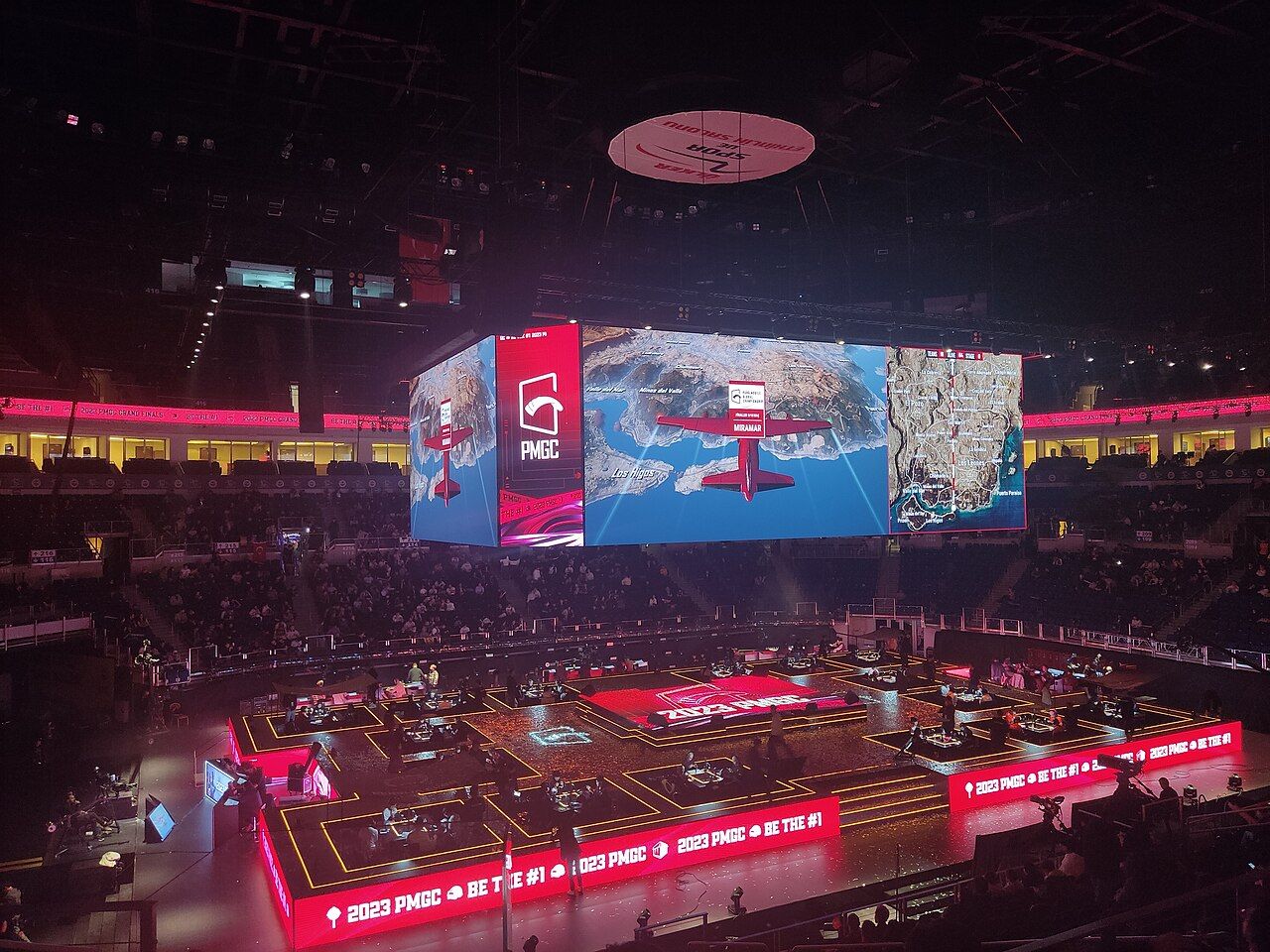
Best BGMI Montage Maker Apps Compared (2026)
GamingCap, VN, DaVinci Resolve, CapCut and Medal compared for BGMI kill montages: what each does best, where each falls short, and what it costs.
Free Game Montage Makers That Don't Watermark Your Video
Free game montage makers with no watermark: DaVinci Resolve, Shotcut, Kdenlive, iMovie and CapCut compared, plus export settings and auto kill detection.
How Long Should a Gaming Montage Be?
How long should a gaming montage be? For most competitive shooters, the ideal duration is between thirty and sixty seconds.