How to Record BGMI on iPhone in High Quality
At a glance
How do you record BGMI on an iPhone?
Use the iPhone's built-in Screen Recording, choose game and recording settings the device can sustain and check a short saved sample for picture and game audio. Transfer the original file to your computer before selecting clips.
 By
Editorial policy and corrections
Ask AI about this guide
In this guide
- What the iPhone recorder actually captures
- Set up Control Center before the match
- BGMI graphics and frame rate for recording
- Heat, battery and storage
- Check the recording before you edit
- Move the file to a PC or Mac without losing quality
- Export settings once the montage is cut
- Where GamingCap fits
- The short version
Short answer: to record BGMI on an iPhone in high quality, update to iOS 26 or later, start the built-in Screen Recording from Control Center with the microphone off, and play at a graphics and frame-rate setting your phone can hold for a full match without heating up. Then move the original file to a computer with AirDrop or a cable, never through a chat app, before you edit it.
That is the whole method. The rest of this guide is the detail that decides whether the footage looks sharp after editing or turns to mush: which iOS version changed the recorder, how to choose in-game settings for recording rather than for bragging rights, how much storage a match really takes, and what to check before you delete anything.
What the iPhone recorder actually captures
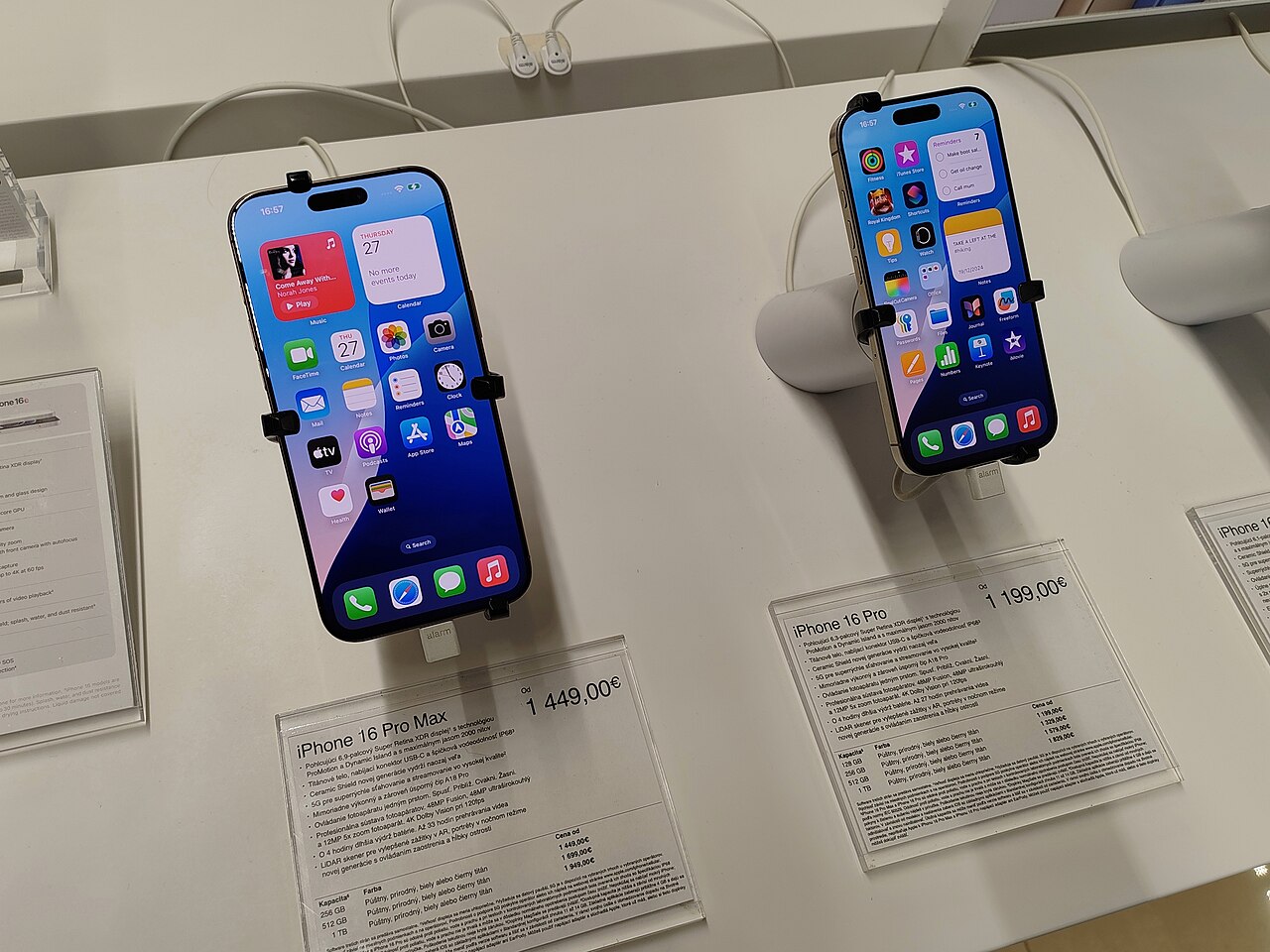
iPhone has a screen recorder built in, and for BGMI it is the right tool. There is nothing to install and nothing sits on top of the game. Apple’s own steps are short: open Control Center, tap the Record button, wait for the three-second countdown, then return to the game (Apple Support: Take a screen recording). The finished video lands in the Photos app.
The detail that matters most is the iOS version. Until iOS 26, screen recordings were capped at 1920 pixels on the long side. On an iPhone 16 Pro Max that meant 884 × 1920 even though the display is far sharper. With iOS 26, recordings are saved at the screen’s full resolution; the same phone records at 1320 × 2868 (9to5Mac, September 2025). If your phone can run iOS 26 and you are still on an older version, updating is the single biggest quality improvement available to you, and it costs nothing.
If your iPhone cannot run iOS 26, the cap stays. You can still make a clean montage from that footage; it simply will not hold up as well if you crop in for a vertical Short.
Set up Control Center before the match
Do this once, outside the game, so you are not fumbling during the drop.
- Open Settings → Control Center (on newer iOS versions, open Control Center and tap + to edit it) and add Screen Recording.
- Open Control Center, touch and hold the Record button and check the Microphone toggle. Leave it off for montage footage. Your voice, keyboard taps and room noise end up on the same track as the gunfire, and there is no clean way to separate them later.
- Turn on Do Not Disturb or a Focus mode. A notification banner that slides down mid-spray is recorded with everything else.
- Close apps you are not using and plug in or start with a charged battery. Recording and gaming at the same time is one of the heaviest things a phone does.
Start the recording in the lobby, not mid-fight. A few seconds of lobby at the start costs nothing and gives you a clean point to trim later.
BGMI graphics and frame rate for recording
BGMI’s graphics menu offers a quality preset and a separate frame-rate option, and which options appear depends on your iPhone model. The setting that looks best in the menu is not always the one that records best, because the phone now has two jobs.
Here is how to choose:
- Frame rate: pick the highest option your phone holds for an entire match while recording. A recording that drops from 90 to 50 frames every time a smoke goes off looks worse than a steady 60. If you play at 90 or 120 normally, test with recording on before you commit.
- Graphics quality: sharper textures help in a montage, because viewers pause on the best kills. But if raising quality causes stutter while recording, drop quality before you drop frame rate. Smooth motion is what makes a kill readable.
- Brightness and style: keep a style where the kill feed and your crosshair are easy to read. A dark, low-contrast look can hide the kill feed text in the corner, and that text is what tells you, and any tool you use, that a kill happened.
Run one TDM or short Arena match with recording on before you record a full classic match. Then check the result, as described below. Fifteen minutes of testing saves you from losing a chicken dinner to a recording that stuttered the whole way.
Heat, battery and storage
Long classic matches are where iPhone recordings fail, and heat is the usual reason. As the phone warms up, it lowers performance to protect itself, and you see it as dropped frames in the second half of the match even though the first ten minutes were perfect.
Practical fixes that do not involve buying anything:
- Take the phone out of a thick case for recording sessions.
- Avoid charging while recording on a hot day; charging adds heat of its own.
- Play in a cool room, out of direct sunlight, and take a short break between matches.
- If drops still appear late in a match, step the frame rate down one level and test again.
Storage is the other trap. Full-resolution recordings are bigger. In 9to5Mac’s sample, a 12-second iOS 26 recording was about 24 MB. That is a small sample, not a promise, but scaled up it suggests roughly 2 MB per second, which would be several gigabytes for a long classic match. Check your free space under Settings → General → iPhone Storage before a session, and keep well over that free. A recording that stops because the phone ran out of space usually stops right before the final circle.
Check the recording before you edit
Open the video in Photos and swipe up for its details, which show the resolution and file size. Then watch it with a critical eye, not just the highlight:
| What to check | What good looks like | If it fails |
|---|---|---|
| Resolution | Full screen resolution on iOS 26 or later | Update iOS; on older versions, accept the 1920-pixel cap |
| Motion | Smooth sprays and flicks, no freezes | Lower frame rate one step, cool the phone |
| Kill feed | Your name readable in the feed | Use a clearer graphics style |
| Audio | Game sound only, no voice or taps | Turn the microphone off before recording |
| Length | The whole match, not cut off | Free up storage before the next session |
To see the exact frame rate, look at the file on a computer: on Windows, right-click the video, open Properties → Details; on a Mac, open it in QuickTime Player and choose Window → Show Movie Inspector.
Move the file to a PC or Mac without losing quality
This is where most iPhone footage gets ruined after it was recorded perfectly. Messaging apps compress video to save data. A clip that looked crisp on your phone can arrive soft and blocky. Apple’s own community answers point to the same fix: send the file another way.
Options that keep the original:
- Mac: AirDrop the video from Photos. It arrives as the original file.
- Windows PC: connect with a cable and import through the Photos app, or use a file-transfer route that does not re-encode. If iCloud Photos is on, Apple notes you must download the full-resolution originals to the iPhone first (Apple Support: Transfer photos and videos).
- Older Windows editors: if your editor refuses the file, Apple’s compatibility setting under Settings → Camera → Formats → Most Compatible captures in H.264 instead of HEVC. That page talks about the camera, so test with one screen recording before relying on it for gameplay.
The longer walkthrough, including cloud and USB routes, is in our guide to moving gameplay recordings from your phone to a PC. Keep the original recording on the computer until your montage is exported and uploaded.
Export settings once the montage is cut
Whatever editor you use, export at the resolution and frame rate you recorded. YouTube’s own guidance is to upload in the same frame rate the content was recorded at, and it recommends about 8 Mbps for 1080p at 30 fps and 12 Mbps for 1080p at 60 fps, as an MP4 with H.264 video and AAC audio (YouTube Help: Recommended upload encoding settings). Exporting a 60 fps BGMI recording at 30 fps throws away exactly the smoothness you worked to keep.
For a vertical Short or Reel from landscape BGMI footage, frame the action rather than shrinking the whole screen into the middle of a 9:16 canvas. The more resolution you recorded, the more room you have to crop, which is one more reason iOS 26’s full-resolution recordings matter. Our BGMI recording settings guide covers the Android side of the same problem and what happens to footage after upload.
Where GamingCap fits
The slow part of a BGMI montage is not recording. It is scrubbing through a 25-minute match looking for the four seconds where you knocked a squad, then doing it again for the next match.
GamingCap does that step on your computer. You choose the recording you moved from your iPhone, type your in-game name exactly as it shows in the kill feed, and it finds the knocks and eliminations with your name on them. Each one becomes a 10-second clip you can keep or drop, and the ones you keep are exported as a single MP4 montage with the original game audio. Detection reads the kill feed, so a clear feed matters; it can miss a kill if the feed is hidden, and you should review the clips before exporting. If you want music or text on top, open the exported montage in your usual editor.
It runs on Windows and on Mac (Apple silicon only; Intel Macs are not supported). There is a 24-hour free trial with no card, then ₹199 a month or ₹1,499 a year in India, or $5 a month and $50 a year elsewhere. If you are making BGMI montages from long iPhone recordings, see the plans and downloads on the pricing page, or read how it works on the BGMI montage maker page. For cutting by hand instead, the steps are in how to clip BGMI kills from long recordings.
The short version
- Update to iOS 26 or later for full-resolution screen recordings.
- Microphone off, Do Not Disturb on, recording started in the lobby.
- Pick the frame rate your phone holds for a whole match while recording.
- Keep the phone cool and leave plenty of storage free.
- Move the original by AirDrop or cable, never through a chat app.
- Export at the frame rate you recorded.
Making a BGMI montage? See how GamingCap finds your BGMI kills for you.
Questions people ask
Can I record BGMI on iPhone without an app?
Yes. Add Screen Recording to Control Center, open BGMI, start the recording from Control Center and stop it from the red indicator at the top of the screen. The video is saved to the Photos app. No third-party recorder is needed.
Why does my BGMI screen recording look blurry on iPhone?
Usually one of three things: an iOS version older than iOS 26, which capped recordings at 1920 pixels on the long side; low in-game graphics; or the file being compressed when it was shared through a messaging app. Move the original with AirDrop, a cable or a file transfer instead.
Does screen recording lower FPS in BGMI on iPhone?
It can, because the phone is rendering the game and encoding video at the same time, and heat makes it worse over a long session. Record a short test match at your normal settings and step the frame rate down one level if the recording stutters.
How do I record BGMI with my voice on iPhone?
Touch and hold the Screen Recording button in Control Center and turn the Microphone on before you start. For a montage you will usually want it off, so the clip carries only game audio and you can add music cleanly later.
Can GamingCap find kills in an iPhone recording?
Yes, once the recording is on a Windows PC or an Apple-silicon Mac. GamingCap reads the kill feed in the video file, matches your in-game name and gives you each kill as a 10-second clip. It does not run on the iPhone itself.
Keep reading
BGMI 90 FPS: Where the Setting Is and Whether to Record at It
Where the frame-rate option sits in BGMI's graphics menu, why it only appears on some devices, and the trade-off between playing at a high frame rate and…
BGMI Recording Settings for Sharp Montages
BGMI recording settings for montages: frame rate, resolution, bitrate and audio on Android and iPhone, plus the export numbers YouTube recommends.
Check the BGMI Kill Feed After an Update Before Making a Montage
If you want to turn BGMI kill feed montage clips into a highlight reel, the first step is verifying that your in-game name is clearly visible in the…